Org-mode and wide TaskJuggler HTML export
By default, when using the TaskJuggler exporting function in Org-mode, it will produce a web page that is too narrow by today’s standards:
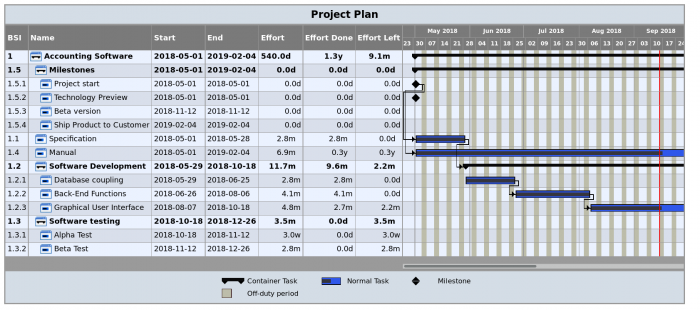
(Notice the scrollbar underneath the GANTT plot.)
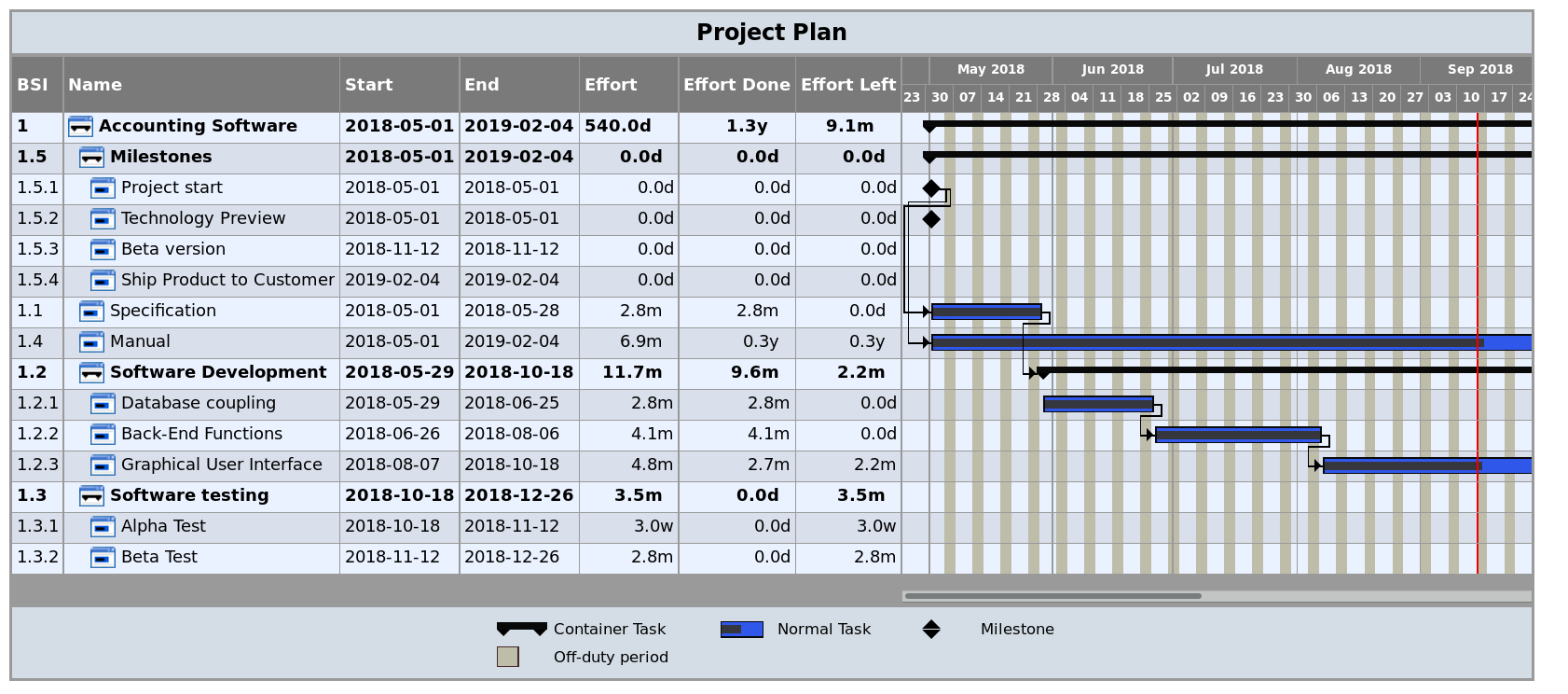
The solution is to put a tweak in your emacs init file that adds columns ... { width 1000 } to the TaskJuggler output.
(setq org-taskjuggler-default-reports
'("textreport report \"Plan\" {
formats html
header '== %title =='
center -8<-
[#Plan Plan] | [#Resource_Allocation Resource Allocation]
----
=== Plan ===
<[report id=\"plan\"]>
----
=== Resource Allocation ===
<[report id=\"resourceGraph\"]>
->8-
}
# A traditional Gantt chart with a project overview.
taskreport plan \"\" {
headline \"Project Plan\"
columns bsi, name, start, end, effort, effortdone, effortleft, chart { width 1000 }
loadunit shortauto
hideresource 1
}
# A graph showing resource allocation. It identifies whether each
# resource is under- or over-allocated for.
resourcereport resourceGraph \"\" {
headline \"Resource Allocation Graph\"
columns no, name, effort, weekly { width 1000 }
loadunit shortauto
hidetask ~(isleaf() & isleaf_())
sorttasks plan.start.up
}")
)
Also, some other tweaks that I found useful:
(setq org-taskjuggler-default-project-duration 999) (setq org-taskjuggler-valid-task-attributes '(account start note duration endbuffer endcredit end flags journalentry length limits maxend maxstart minend minstart period reference responsible scheduling startbuffer startcredit statusnote chargeset charge booking))
The first sets the default project duration that I couldn’t seem to set in the org file itself. The second makes it possible to add booking clauses to tasks (so you can define those inside your org files).
Finally, I also found it useful to tweak the columns in the GANTT chart. I added the effortdone and effortleft fields, which are visible in the above screenshot.
Options for using Unity on Linux host
When using a Linux desktop, I often run into situations where I need Windows Office applications. While I am a fan of the Wine project, it does not support all the features that I need (for example: OneNote syncing with SharePoint/OneDrive).
As a result, using a Windows Virtual Machine is often unavoidable. The ideal situation is, however, that the virtualized Windows applications are integrated as much as possible within the Linux desktop environment. Recently I have been experimenting with the available options in this area.
| Vmware Workstation 11 Unity (1) | VirtualBox Seamless | Virtual Machine + RDP (2) | Wine (3) | |
|---|---|---|---|---|
| HTML (formatted text) copy/paste | No | No | Yes | Yes |
| Image copy/paste | Yes | No | Yes | Yes |
| Guest windows in host taskbar | Yes | No | Yes | Yes |
| Stability | Low (with Office 2016 a lot of glitches; unusable) | High | Low (A lot of glitches. Also increased CPU load and lag) |
Low (Glitches / crashes are common) |
(1) I am listing explicitly Workstation 11 here. The unity feature was removed from VMWare Workstation for Linux per version 12.
(2) For the Virtual Machine + RDP solution I ran a Windows Server 2016 VM and used xfreerdp in my Linux host. The amount of glitches was quite high and every time your suspend/unsuspend your host system the xfreerdp needs to reconnect to your VM.
(3) Office in wine is not feature complete; for example OneNote does not have SharePoint/OneDrive sync.
With regards to performance:
Initially I thought that the VirtualBox approach would be faster than the VM+RDP due to the networking overhead. In reality, the responsiveness on a large screen (UHD resolution) was better with the VM+RDP than the native VirtualBox display. I haven’t compared the CPU loads, but I did get the impression that the VM+RDP is more expensive in CPU load.
Of all the options, the VM+RDP comes the closest to Linux integrated with a Windows desktop, if you can handle the glitches and increased CPU load. There currently is no perfect solution.
P.S.: this post does not cover the other way around: Windows 10 + WSL + X-server.
Split DNS when 53/udp is in use
Say that you’re doing a pentest/RT with one end of a device connected to 4G dongle and the other end connected to the target network via ethernet. In such cases you want the box to fetch updates via 4G and only use the ethernet for the security test. Split DNS tunneling is a solution. However, sometimes you may already have a process bound to port 53/udp that you don’t want to kill (e.g. a C&C server such as CS / MSF). Unfortunately /etc/resolv.conf does not allow you to specify a port on Linux (as far as I’m aware).
The following settings allow you to run dnsmasq on a different port but still work for a local resolver.
Dnsmasq step:
## vim /etc/dnsmasq.conf: # Set the alternative port port=5353 # Ignore /etc/resolv.conf no-resolv # Upstream DNS for normal traffic server=192.168.1.1 # Upstream DNS to resolve domain names for the security test server=/clientnetwork.local/10.0.0.1
Local DNS resolver step:
## vim /etc/resolv.conf: # Dummy nameserver. Will not be actually queried nameserver 192.0.2.3
Iptables step:
# Redirect the DNS queries towards the dummy server # to go to the local dnsmasq instead iptables -t nat -I OUTPUT --dst 192.0.2.3 \ -p udp --dport 53 -j DNAT --to 127.0.0.1:5353
PowerShell script to suspend Windows screensaver at specific locations
Say that you are working with two laptops side by side. You may not like the automatic screensaver kicking in on a laptop while you are momentarily working on the other, in particular if it requires a password to unlock. This may be especially true at certain locations that are trusted (e.g. home).
The following PowerShell script for Windows can be used for suspending the screensaver when you are connected to a specific Wi-Fi network.
$wsh = New-Object -ComObject WScript.Shell
# Idea to use WSH comes from: https://stackoverflow.com/questions/9794893/powershell-toggle-num-lock-on-and-off
while ($true) {
$wifi = get-netconnectionprofile | Out-String -Stream | Select-String -Pattern ""
if ($wifi) {
$wsh.SendKeys('+')
}
Start-Sleep -Seconds 60
}